Side Chat (the one Jeanette found)
I hit a few buttons by accident the other day and a little panel slid open in the bottom-right corner of my Claude Code window. Inside it said:
Chat about this session without touching the main thread. Claude sees the full context, and nothing here is added to the conversation.
It is exactly what I needed and did not know existed. Side Chat is a scratchpad. You can ask Claude a quick question, get an answer, and the whole exchange disappears without ever clogging up your main conversation. Claude still sees everything that has been happening, so the answers are smart and in-context.
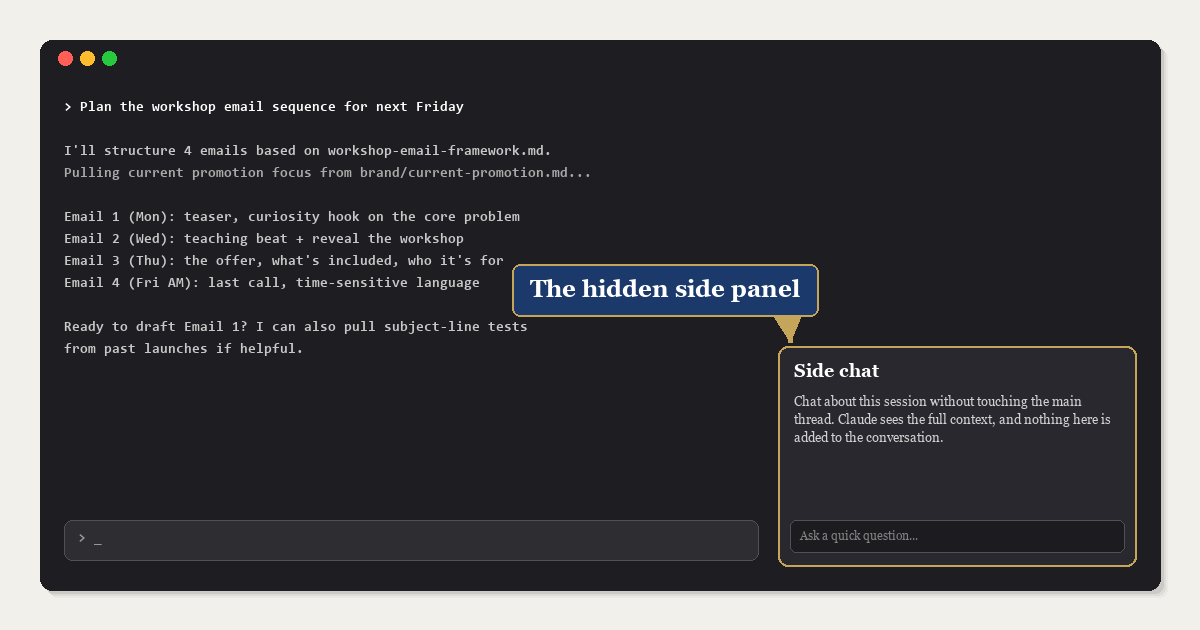
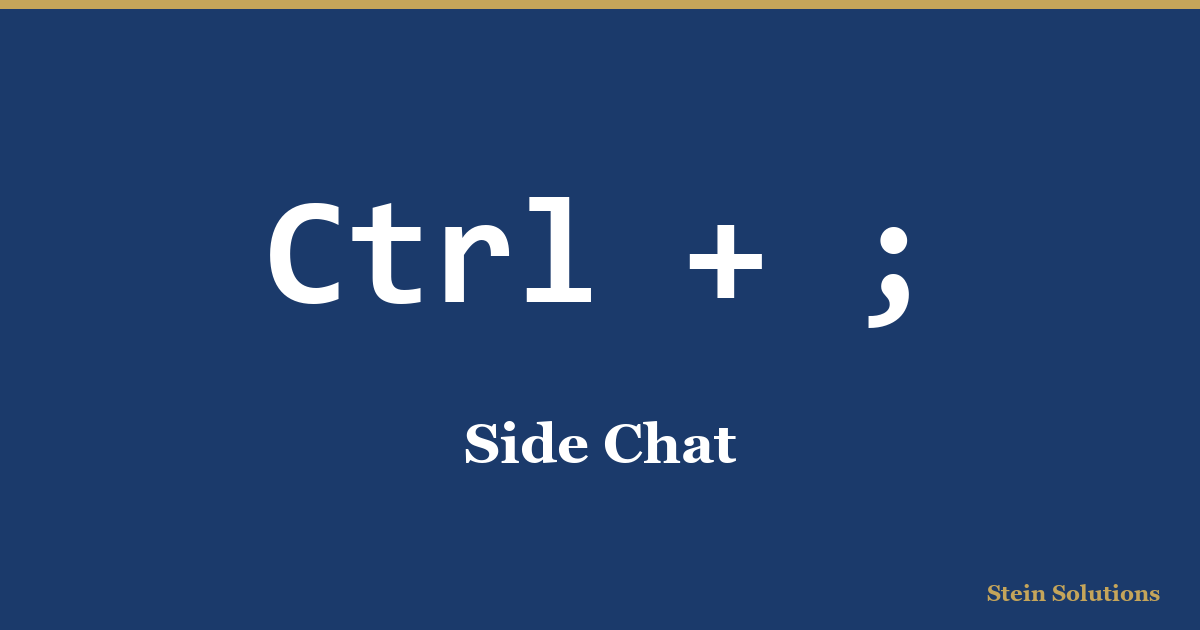
Open it with: Ctrl + ; on Windows, or Cmd + ; on Mac. Or type /btw in the prompt.
Use it when: mid-task, you want a fast answer like "what was that backup password?" or "who did I email about this?" without stopping what Claude is working on.
Keyboard Shortcuts
The three keyboard tricks that come up most often in everyday work.
Command History Search
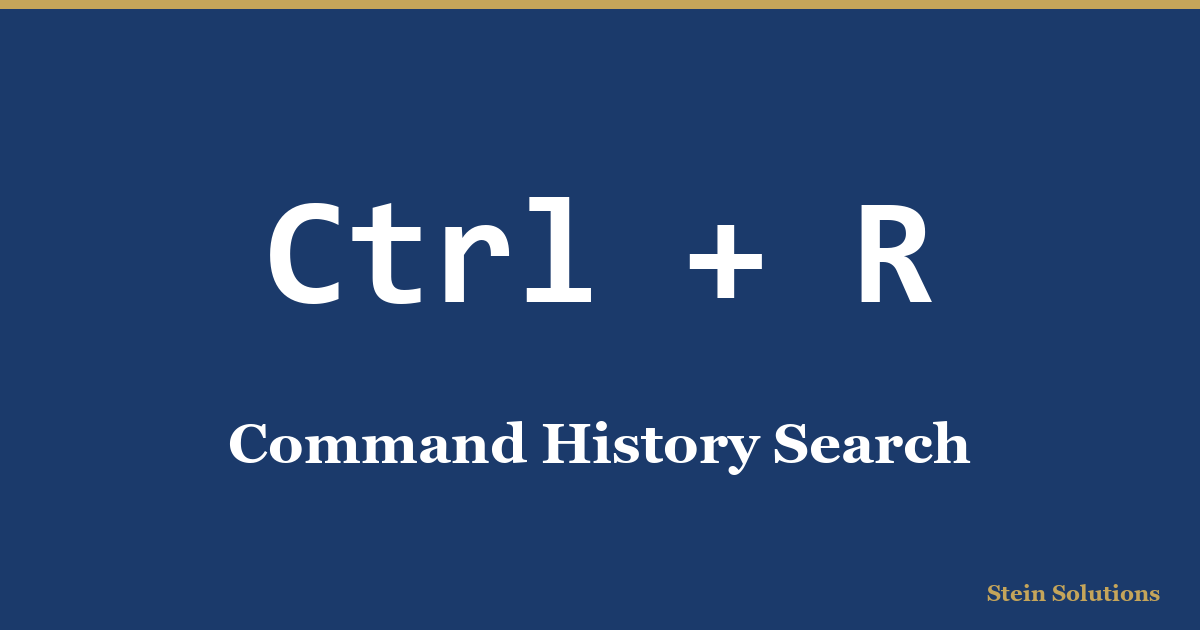
Press: Ctrl + R, then start typing.
Use it when: you remember running a great prompt a couple of weeks ago but cannot find it. Search through your prompt history, hit Enter, and run it again instantly.
Edit and Branch From History
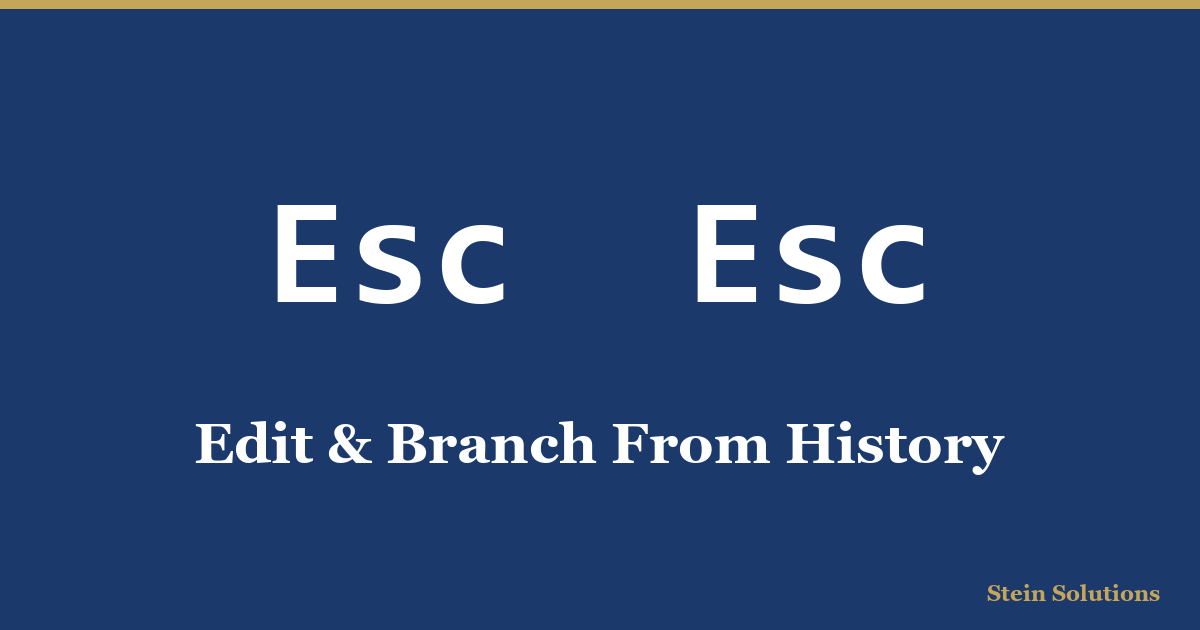
Press: Esc Esc (tap escape twice), or type /resume.
Use it when: halfway through a conversation, you realize you phrased something wrong. Hop back to any earlier message, reword it, and Claude picks up from there. Your original conversation stays intact.
Drag and Drop Images

Do this: drag a screenshot, photo, or PDF straight from your desktop into the Claude Code window.
Use it when: you want Claude to look at something visual. "Here is a screenshot of my landing page, what is off about the button?" or "Read this scanned receipt and pull out the totals."
Useful Slash Commands
Built-in slash commands that solve specific problems most people work around the hard way.
Smart Compaction
Type: /compact
Use it when: a long session is starting to feel sluggish or you see a "context running low" warning. This summarizes the conversation so far, frees up room, and lets you keep going for another couple of hours without losing the thread.
Clear History

Type: /clear
Use it when: you are switching from one project to a completely different one mid-session. Clear the conversation, keep the window open, start fresh. Way faster than closing and re-launching.
Export the Conversation
Type: /export
Use it when: you want to save a session as a Markdown file. Great for documenting a build, sharing a session with a team member, or keeping a record of decisions you made together.
Snapshot Work in Progress
Type: /snapshot
Use it when: you are about to try something risky and want a checkpoint to come back to. Like a "save game" before the boss fight.
Power-User Tricks
Three commands that make Claude Code feel less like a chat box and more like a real assistant working alongside you.
Memory System
Type: /memory
Use it when: you keep telling Claude the same thing every session (your client list, your brand voice, your preferences). Memory captures it once and remembers across every future session, so you never have to re-explain.
Run on a Schedule
Type: /loop
Use it when: you have a task you want to repeat on a regular cadence, like a daily morning summary or an hourly check on something. Pair /loop with any of your slash commands and Claude will run them quietly in the background on the interval you choose.
Consolidate Memory
Type: /anthropic-skills:consolidate-memory
Use it when: once a month or so, run this. It is the official Anthropic memory cleanup. Merges duplicate notes, fixes stale facts, prunes the index. Keeps your assistant sharp.
Open the slash commands docs →
Customize Your Setup
Make Claude Code yours.
Customize Keybindings
Type: /keybindings
Use it when: the defaults do not match your muscle memory. Rebind any shortcut to whatever you want. Changes apply instantly.
Vim Mode
Type: /vim
Use it when: you are a vim person. Flips the whole interface to vim keybindings, modal editing, the works. Skip this gem if "vim" means nothing to you.
Build Your Own Skill
Type: /skill-creator
Use it when: you have a workflow you run over and over (drafting Tuesday emails, prepping for client calls, scheduling posts) and you want Claude to learn it as a one-word command. This is the official Anthropic skill builder. Describe what you want, it builds it, tests it, and saves it as a new slash command you can use forever.
Found a gem of your own? Tell me. This page is going to grow over time. Every accidental discovery is welcome.
You're building the tools. Now see where AI actually fits your business.
The free AI Opportunity Map scores your operations and hands you your first three moves, emailed the moment you finish. No call required.
Take the Free Audit →