Before you start
GitHub is a free place to store your projects online. Think of it like Google Drive, but designed for code and website files.
It keeps track of every change you make, so you can always go back to a previous version if something breaks. It's like having an "undo" button for your entire project.
You don't need to know how to code to use it. Many tools (including Claude Code) can handle the technical parts for you. You just need an account so those tools have a place to save your work.
Good to know. GitHub is free for everything you'll need. You won't need a paid plan.
Estimated time: about 10 minutes.
Step 1, Create your account
- Open this page: github.com/signup
- Enter your email address
- Create a password
- Choose a username (this will be visible to others, so pick something professional. Your name or business name works great.)
- Complete the verification puzzle
- Check your email and enter the verification code
Tip. Your username becomes part of your profile URL (github.com/yourname). Keep it simple and professional.
Step 2, Set up your profile
- After verifying, GitHub will ask you a few questions about how you plan to use it. You can skip these or answer honestly. They're just for recommendations.
- Select the Free plan (that's all you need)
- You'll land on your GitHub dashboard
Good to know. You can add a profile photo and bio later. For now, just having the account is what matters.
Step 3, Create your first repository
A repository (or "repo") is just a folder for a project. If you're setting this up for Claude Code or a website, here's how to create one:
- Open this page: github.com/new (if you're logged out, GitHub will send you to login first and drop you right back on the new-repo page)
- Name your repository (for example, "my-website" or "my-system")
- Add a short description (optional)
- Choose Private if you don't want others to see it, or Public if you do
- Check the box that says Add a README file
- Click Create repository
Good to know. Private repos are free. Use them for anything you don't want to be public. You can always change this later.
Step 4, Create a personal access token
If you're going to let other tools (like Claude Code or a deploy script) push code to your GitHub for you, those tools need permission. GitHub gives them permission with something called a Personal Access Token, or PAT for short.
Think of it like a hotel key card. It's a secret code you generate once, then you give it to a tool you trust, and that tool can create or update repositories on your behalf without needing your password.
- Open this page: github.com/settings/tokens (if you're logged out, GitHub will send you to login first and drop you right back here). Make sure you're on the Tokens (classic) tab.
- Click the Generate new token button, then choose Generate new token (classic)
- Give it a name in the Note field (something like "Stein Solutions deploy" or "Claude Code")
- Set Expiration to No expiration (or 1 year if you prefer to rotate it later)
- Under Select scopes, check these two boxes:
- repo (lets tools create and update your repositories)
- workflow (lets tools set up automatic deploys so your site updates when you push code)
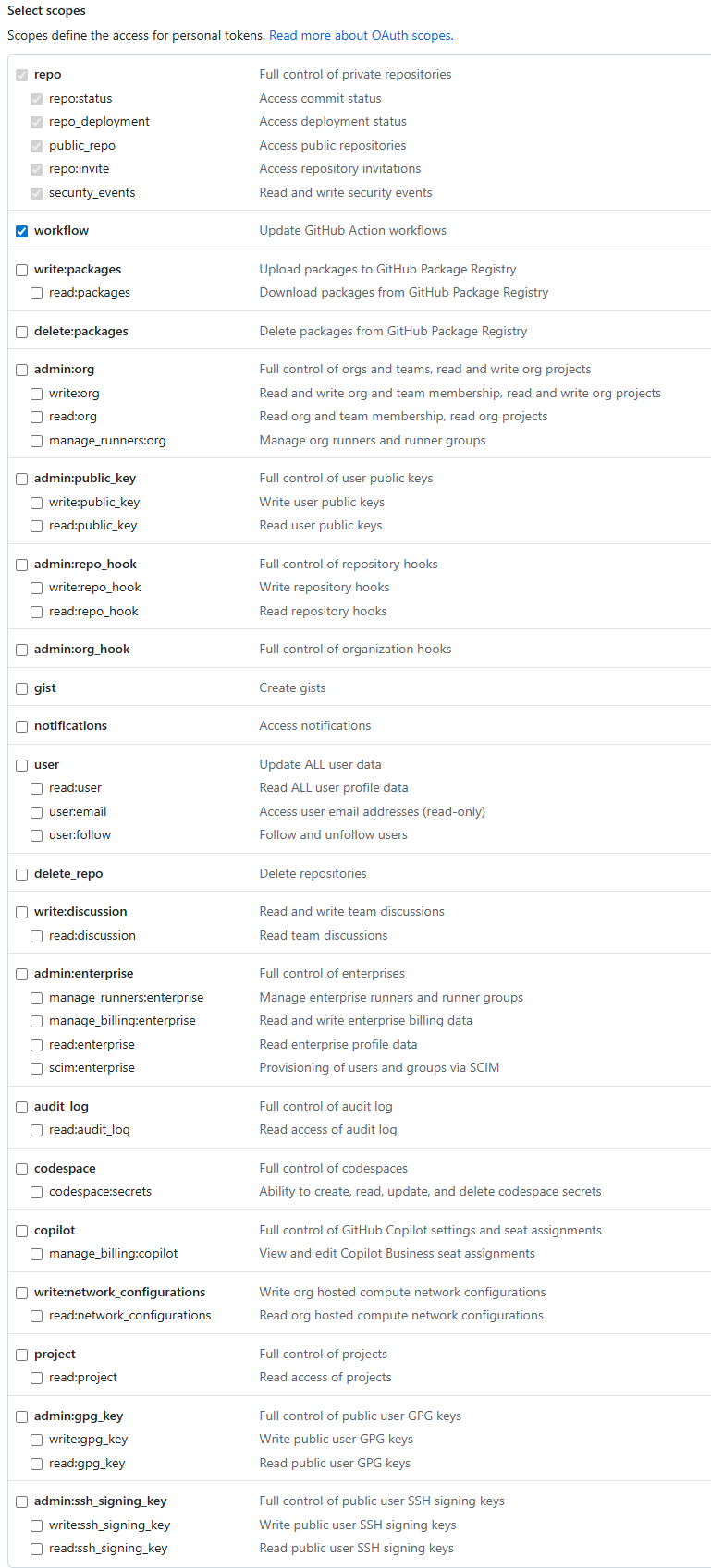
- Scroll to the bottom and click the green Generate token button
- GitHub will show you the token one time only. Copy it immediately and paste it somewhere safe (a password manager, or wherever Jeanette tells you to send it).
Important. You will only see the token ONCE. The moment you leave that page, it's hidden forever. If you lose it, you can't look it up again, you have to generate a new one. Copy it as soon as it appears.
Good to know. The token looks like a long string starting with
ghp_followed by random letters and numbers. It's a password, so treat it like one. Don't share it publicly or paste it into a screenshot.
Verify it worked
You should see your new token, and your repository should appear in your GitHub dashboard. You're ready to:
- Send your token to Jeanette if she asked for it, she needs it to deploy your project to your account
- Connect it to Claude Code, Claude can push your files to GitHub automatically
- Deploy a website from your repo using Cloudflare or Vercel
Tip. You don't need to learn Git commands. Claude Code handles all of that for you. Just tell it what you want to do.
You're building the tools. Now see where AI actually fits your business.
The free AI Opportunity Map scores your operations and hands you your first three moves, emailed the moment you finish. No call required.
Take the Free Audit →